
What is MCP
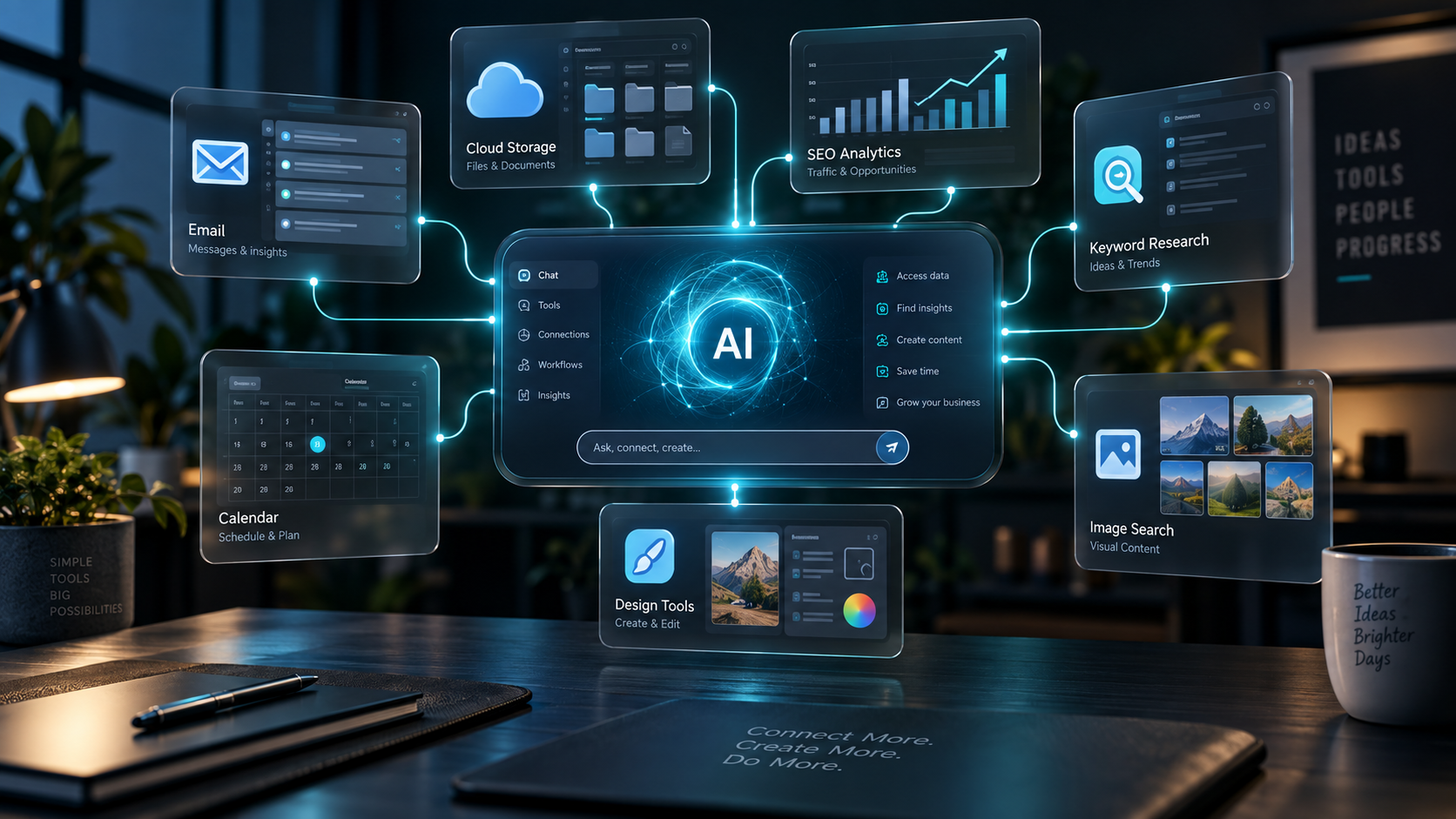
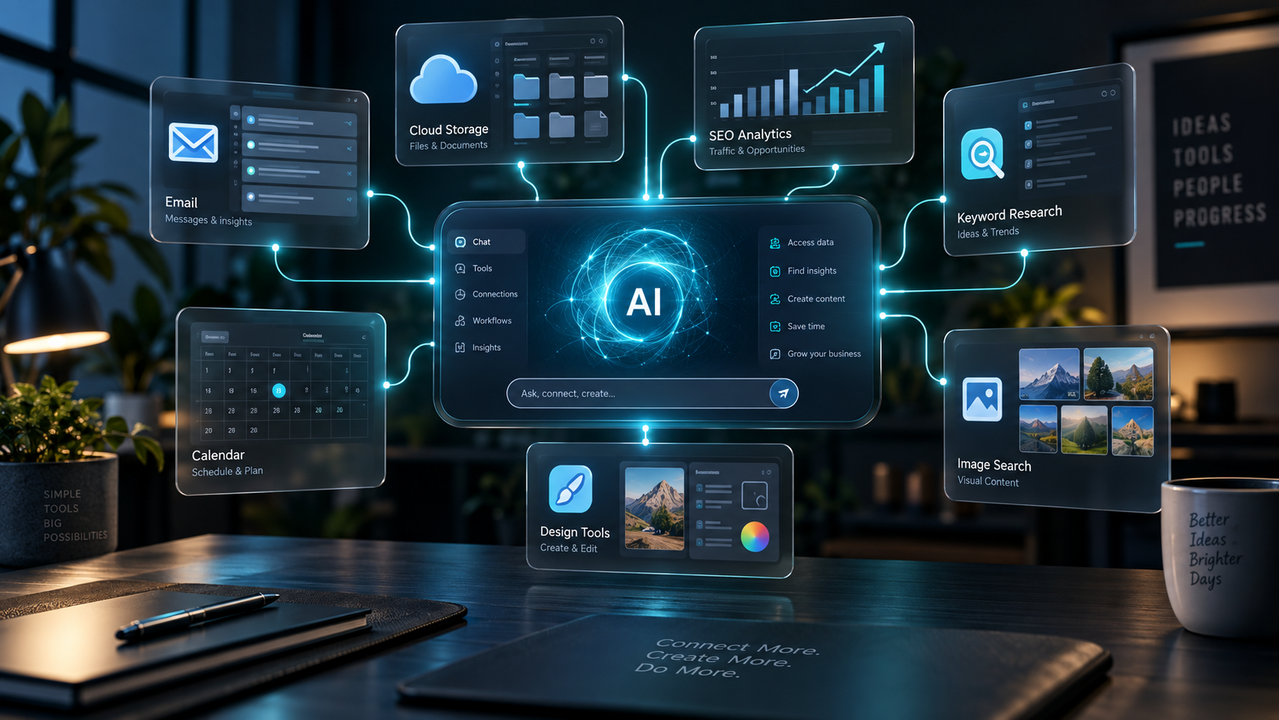
MCP servers, short for Model Context Protocol servers, allow an AI such as Claude to connect with external services and tools. This lets information and supported actions move between the AI and connected apps.
The practical benefit is you can build workflows where your AI works with tools you already use, such as research, search, image, and productivity services.
The AI Workflow Problem Most Website Owners Eventually Hit
There is a point where using AI stops being about asking it to write something and starts becoming about getting actual work done.
You may need information from Google Search Console, images from Unsplash, keyword ideas from Pinterest, content from your website, and perhaps another tool for SEO research. Each service lives in its own little world.
Copy this from here. Paste it there. Download this. Upload that. Check another dashboard. Come back to the AI.
In a recent Wealthy Affiliate live WAbinar, MagiStudios, gave a practical demonstration of how MCP servers can connect AI with external services. The examples make the idea much easier to understand because you can actually see the workflow rather than just hear a technical definition.
And this is where the subject gets much more interesting than the technical name suggests.
If you’re curious about seeing the process in action, you can watch the WAbinar and explore Wealthy Affiliate.
What Are MCP Servers?
MCP stands for Model Context Protocol. You don’t need to memorize the technical definition to understand the useful part.
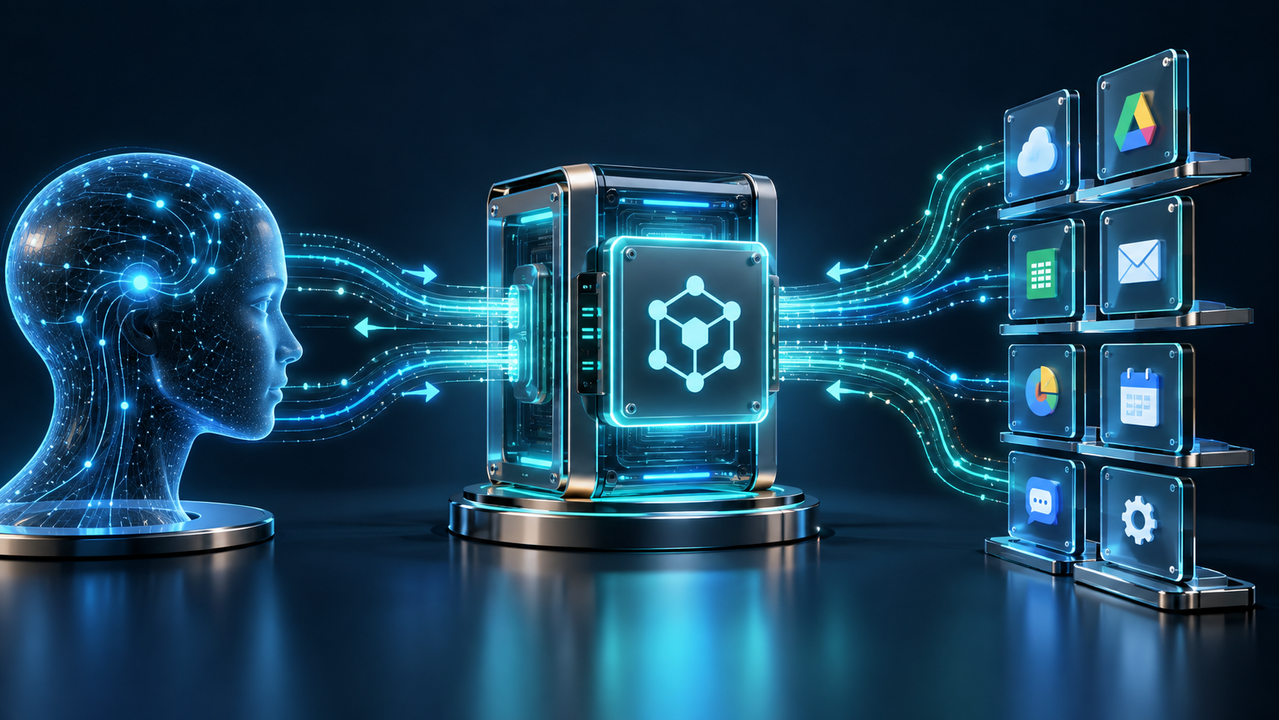
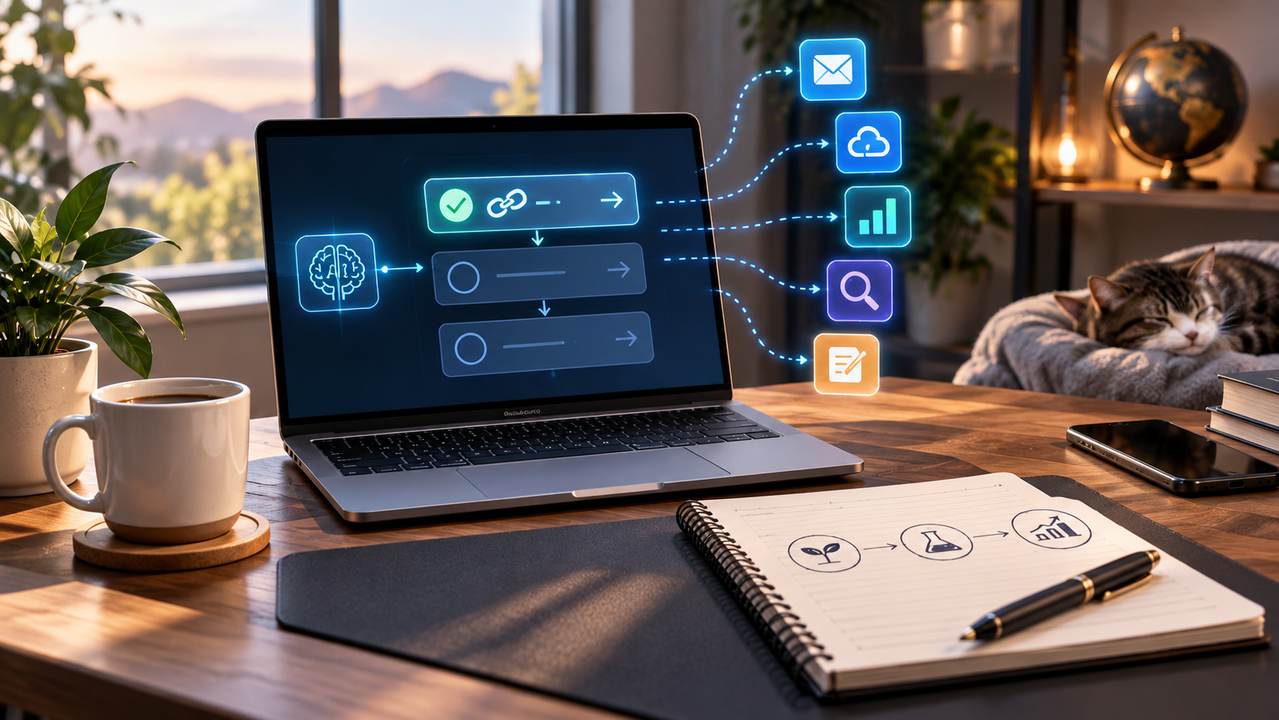
Think of an MCP server as a bridge between your AI and another application or service. One side can send information or instructions, the other can provide information or perform supported actions, and the two can communicate through the connection.
A simple example is connecting Gmail to Claude so the AI can find relevant Pinterest trend emails and extract niche or keyword ideas from them, rather than making you search through the inbox and copy the information manually.
The difference is workflow.
Instead of:
Gmail → copy → paste → AI → organize
you can move toward:
AI → connected Gmail → research → report
That can remove a surprising amount of repetitive work.
My Tip
Don’t start by connecting everything.
Pick one task that you need to repeat. Connect one useful service, learn how the workflow behaves, and then expand.
Why Claude Calls Them Connectors
One small terminology detail can make the whole subject less confusing.The underlying technology is referred to as an MCP, but inside Claude, these connections are presented as connectors.
That makes sense from a user’s perspective. Claude is connecting to Gmail, Google Drive, Canva, Slack, Notion, or another service.
Claude’s connector directory contains a wide range of options, including productivity, design, SEO, and other tools. The directory can be searched and filtered by category.
So when you see “connector” in Claude, think:
A connection that gives the AI access to a particular service or capability.
Are MCP Servers Safe?
This is probably one of the first questions people ask. Claude presents two broad categories of connectors:
Verified connectors
These have been reviewed by Anthropic for quality and security.
Community connectors
These have passed automated checks but have not received the same in-depth review from Anthropic.
That distinction matters. A verified connector and a community connector should not be treated as exactly the same thing.
Custom connectors deserve even more caution. A connector that you add yourself has not necessarily been vetted by Claude or ChatGPT, so you should only connect services you understand and trust.
I think that’s a sensible rule for any tool that can access your accounts or information.
Start small. Understand what permissions you’re granting. Then expand.
What Can You Actually Connect?

The possibilities go well beyond email.
A connector directory can contain services such as:
- Google Calendar
- Google Drive
- Gmail
- Canva
- Notion
- Slack
- Figma
- Microsoft 365
- HubSpot
- Asana
There are also SEO-related connectors, including tools such as Ahrefs and Semrush. However, connecting an MCP does not automatically give you a free subscription to the service.
If a connector requires an account with a particular service, you still need that account. A paid tool may still require its own paid subscription to access its full capabilities.
That’s an easy detail to overlook when you first discover the connector directory.
The Live Demo: Claude + Unsplash
This is where the idea moves from explanation to something you can actually visualize.
The workflow connects Unsplash to Claude.
Once the connection is authenticated, Claude can use the available Unsplash tools. asks Claude to search for images based on a description.
For example, you can search for Volkswagen vans on a beach at sunset. Claude returns image results from the connected service.
That’s useful by itself, but Magistudios takes the workflow one step further.He selects an image he likes and asks Claude to create an image prompt for another image-generation tool, Ideogram.
Now one AI conversation has connected multiple steps:
Find inspiration → select an image → create a prompt → generate a new image
That’s the part I find most interesting. The value isn’t simply that Claude can search Unsplash. The value is that one connected workflow can pass the task from one tool to another.
MCPs Can Turn AI Into a Workflow Assistant
This is the bigger lesson from the WAbinar.
The preferred approach should be giving AI enough context and letting it work through a sequence of tasks.
For example, he demonstrates a workflow involving Google Search Console and a Pinterest keyword research tool.
Claude can inspect performance information from Google Search Console, identify promising areas, and then use another connected service to investigate related Pinterest search activity.
The resulting keyword ideas can then feed into the next content decision. That is a very different experience from asking an AI:
“Give me some blog ideas.”
Now you’re giving it access to information from your actual workflow. The distinction is important.
Generic AI advice is based on what the model already knows.
Connected AI can work with information from the tools and accounts you authorize.
The SEO Possibility Is Especially Interesting
For website owners, this is where MCP servers become particularly intriguing.
Imagine a workflow where your AI can access search performance information, look for emerging keyword opportunities, review relevant research, and then help develop content around those findings.
The example involves a website where previously published posts had started attracting attention. Instead of simply guessing what to write next, he asks Claude to examine the data and then look for additional keyword opportunities.
The result is a new content direction based on observed performance and connected research. That’s a much more useful starting point than blindly asking for “10 SEO keywords.”
What About Custom MCP Servers?
Not every useful connector will necessarily appear in the main directory.
Some services can provide their own MCP server URL. You can then add that connection as a custom connector inside Claude.
The basic workflow he demonstrates is:
- Open Settings.
- Go to Customize.
- Open Connectors.
- Choose Add.
- Select Add Custom Connector.
- Enter the connector name and MCP server URL.
- Complete the authentication process if required.
The important warning is that custom connectors have not necessarily gone through the same review process as verified connectors.
So don’t treat “I found an MCP URL on the internet” as enough reason to connect it to an important account.
You Don’t Need to Connect Everything
The connector directory can become a rabbit hole.
There are many options, and once you realize that AI can connect to different services, it is tempting to connect every tool you have ever used.
A more practical approach is to try one, make sure it works, and then build from there.
I agree.
The goal isn’t to create the world’s most impressive collection of connectors.
The goal is to remove friction from your actual work.
If you spend 30 minutes every week moving information between two tools, that’s a much better candidate than a connector you’ll use once every six months.
MCP Servers and the Future of AI Workflows
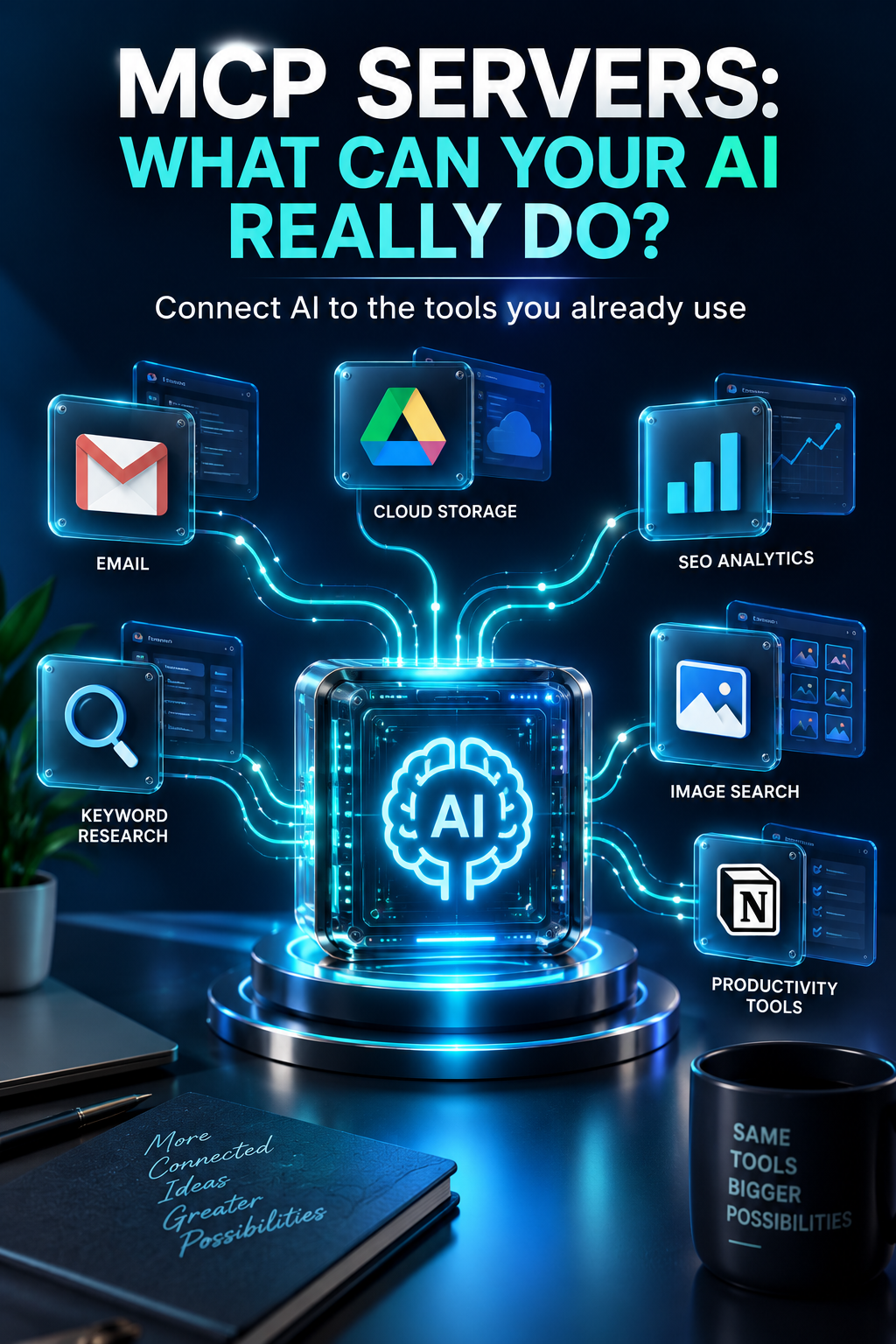
One of the most interesting themes in the WAbinar is the movement from AI as a chatbot toward AI as a working environment.
The WAbinar demonstrates how Claude can interact with several tools in one conversation. It also explores Claude’s browser capabilities and the possibility of AI working with websites that require login, provided the relevant access is available.
He compares this broader experience with the direction of Wealthy Affiliate’s own AI development, including ACE.
The underlying idea is worth watching closely. The more tools an AI can work with, the less often you have to act as the human bridge between them. That doesn’t mean you should hand over every decision. Quite the opposite.
The most useful setup is one where AI handles repetitive information gathering and processing while you remain in charge of strategy, judgment, and final approval.
Common Mistakes When Starting With MCP Servers
Connecting too many services at once
Start with one useful connection.
Ignoring permissions
Before authorizing a connector, look at what information or actions it can access.
Assuming every connector is equally vetted
Verified, community, and custom connections are not the same.
Assuming the connector replaces the service
An MCP connection does not automatically give you a paid subscription to another platform.
Building complicated workflows before testing the basics
First prove that one connection works. Then add another step.
A Simple MCP Starter Checklist
Before connecting your first MCP server, ask:
- What repetitive task am I trying to remove?
- Which service contains the information I need?
- Does that service have a verified connector?
- What permissions will the connector receive?
- Do I need an existing account or subscription?
- Can I test the connection with a low-risk task?
- What should I ask the AI to do once the connection works?
That last question is important. Connecting a tool is only half the job.You also need to learn how to talk to the connected AI.
The practical lesson is to explicitly tell the AI which connected service you want it to use, such as asking Claude to search Unsplash or work with another connected tool.
Want to Take This Workflow a Step Further?
Connecting AI tools is powerful, but your website content needs to work together too. Learn How to Create Internal Link Clusters With AI and discover how AI can help you build smarter connections between your articles for a stronger, more organized content structure.
The Question I Think More Website Owners Should Be Asking
The most useful question isn’t:
“Which MCP should I install?”
I’d ask:
“Where am I wasting time moving information between tools?”
That’s where MCP servers can become genuinely useful.
Maybe it’s collecting emails. Maybe it’s researching keywords. Maybe it’s checking search performance. Maybe it’s finding images.
Maybe it’s moving information between your content workflow and another application. Find the bottleneck first. Then look for the connection.
Final Thoughts
MCP servers sound technical until you see what they actually do. At their simplest, they create a bridge between an AI and another service.
But once you connect several useful tools, the possibilities become much bigger.
The WAbinar’s Unsplash → Claude → Ideogram example is a great illustration of this. So is the Google Search Console → Pinterest research → content planning workflow.
You don’t need to build an elaborate AI system tomorrow. Start with one annoying task. Connect one useful tool. Test it. Then see where the next bottleneck appears.
And if you’d like to watch Magic Studios demonstrate these workflows rather than simply read about them, the full WAbinar is worth exploring.
🎥 Watch the WAbinar and Explore Wealthy Affiliate
Watch the Live WAbinar: Creating Internal Link Clusters With AI
If you’re building an online business and want a community, training, and tools in one place, this is also a good opportunity to explore Wealthy Affiliate.
Frequently Asked Questions
What does MCP stand for?
MCP stands for Model Context Protocol, a way for AI to communicate with external applications and services.
What is an MCP connector?
An MCP connector is a connection that allows an AI such as Claude to interact with a supported external service. Claude presents these connections as connectors.
Are MCP servers safe?
The WAbinar distinguishes between verified connectors, community connectors, and custom connectors. Verified connectors have undergone Anthropic’s review process, while community connectors have passed automated checks without the same in-depth review. Custom connectors require additional caution.
Do MCP connectors give you free access to paid tools?
No. A connector does not automatically provide a free subscription to the service it connects to. You may still need an account or paid subscription for the external service.
Can MCP servers help with SEO?
They can support an SEO workflow by connecting AI with services that contain useful search or keyword information. You can create workflow involving Google Search Console and Pinterest keyword research.
Should beginners use custom MCP connectors?
It is safer to start with a verified connector when one is available. If you use a custom connector, understand who provides it, what permissions it requests, and what information it can access before authorizing it.